
In short:
- web.dev says the largest element on about 80% of web pages is an image, so the big photo at the top of your homepage is the first thing to check on a phone.
- Run your homepage through PageSpeed Insights on mobile and compare its Largest Contentful Paint with Google’s “good” mark of 2.5 seconds.
- Three fixes you can make without a developer: swap in a web-optimized photo, rethink the image carousel, and link straight to your pages from holiday posts instead of through redirects.
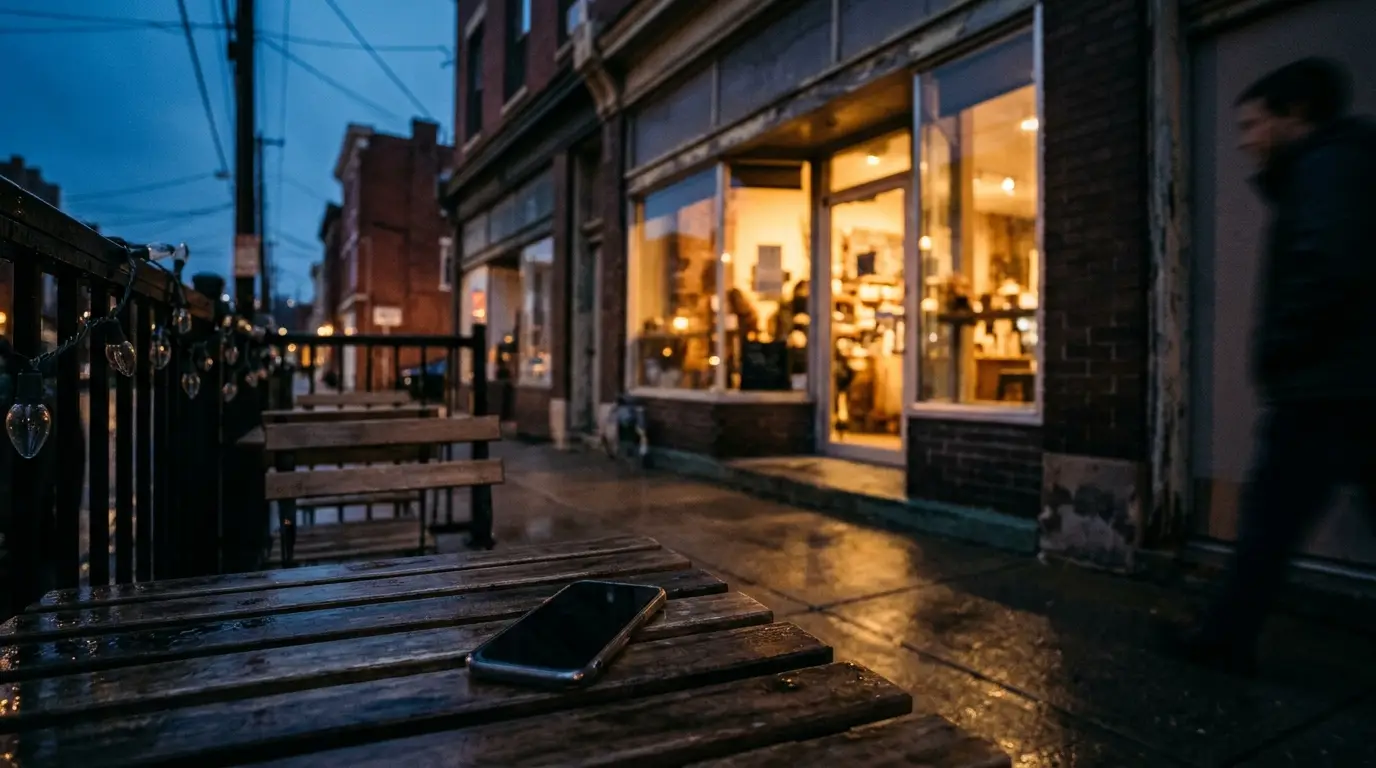
The Peoples Gas Holiday Market opens in Downtown Pittsburgh on November 20 and runs through December 24. Highmark Light Up Night is Saturday, November 21, and Small Business Saturday is November 28, according to the Pittsburgh Downtown Partnership’s 2026 holiday announcement. The same release says the Central Business District has over 150 small businesses. Over the next few weeks, a lot of people will pull out a phone in a crowd or a coat-check line and look one of them up.
If your site already gets visits but few people reach out, this is a good time to look at one thing: how the first screen of your homepage loads on a phone. It’s one page and one check, and you can do it this week.
Why the biggest photo is the place to look
web.dev’s guide, Optimize Core Web Vitals for business decision makers, says the largest element on about 80% of web pages is an image. On a small business site, that may well be the big photo across the top of your homepage: the storefront, the team, the finished project.
That matters because of a measure called Largest Contentful Paint, or LCP. It tracks how long the biggest thing on the screen takes to show up. On its Web Vitals page, web.dev lists a “good” LCP as 2.5 seconds or less. It measures that at the 75th percentile of page loads, and it splits mobile from desktop. So a homepage can look quick on your office computer and still be slow for people on phones.
We can’t tell you a slow first screen is why your site isn’t bringing in inquiries. Plenty of other things could be. But this check takes a few minutes, and the fixes are in your hands.
Step 1: Run your homepage through PageSpeed Insights
Open Google’s free PageSpeed Insights tool and paste in your homepage address. Look at the mobile results first, since that’s where your holiday visitors will be.
- Find the LCP number and write it in a note, with today’s date.
- Compare it with 2.5 seconds. Is it inside Google’s “good” range or outside it?
- Check the desktop tab too and write that number down separately. The two can be quite different.
- Look at your own first screen. What’s the biggest thing on it: a photo, a slider image, a block of text? That’s the element to focus on.
If your number is already in the good range, you can stop here and spend the time somewhere else. That’s a fine result.
Step 2: Open the page on your phone the way a shopper would
Numbers only tell part of the story. Turn Wi-Fi off, open your homepage on cellular and watch the first screen load. Imagine you’re someone near the Holiday Market who just typed your business name.
- How long before you can tell what you do?
- Does the page jump around or shift while it loads?
- Is there a big blank area where a photo is still on its way?
A blank gap is usually your biggest element still arriving. Write down what you saw next to the number from Step 1.
Step 3: Replace the photo with a web-optimized version
web.dev gives non-developers two pieces of advice about images: ask your designer for web-optimized images rather than print-quality ones, and compress images before you upload them. A photo prepared for print or pulled straight from a camera isn’t made for a phone screen, so it’s worth checking which kind is on your homepage.
- Find the original photo. If you don’t have it, ask whoever built your site.
- Ask for a web-optimized version, or compress it with a free image tool before uploading it.
- Replace the old photo in the same spot, rather than adding a second one.
- Run PageSpeed Insights again and write down the new LCP next to the old one.
If you’re not sure how to swap an image on your site, that’s a short job for whoever manages it. Give them the exact page and the exact photo.
Step 4: Rethink the carousel
Many homepages open with a rotating slider of three or four photos. It feels like a good way to show everything. The web.dev guide says carousels can force several images to download at once, and it tells you to think carefully about using them.
So ask yourself a plain question: if you could only have one photo and one sentence at the top of your homepage, what would they be? Try that version. One strong image with one clear line gives the phone less to download and gives a stranger less to sort through.
Step 5: Check the links in your holiday posts
While you’re at it, look at where your holiday posts, emails and ads send people. Some links go through a link shortener or a campaign address that bounces visitors to another address before the page loads.
The web.dev guide says redirects are a common cause of slow Time to First Byte. It tells marketers to avoid chaining link shorteners or using campaign URLs that redirect, and to keep redirects in ads and emails to a minimum.
The fix is simple. Tap each link in your latest post or email on your phone. If it bounces or flashes through another address, replace it with the direct page address.
What this won’t do
- It won’t guarantee more inquiries. A faster first screen removes one possible obstacle. It doesn’t make anyone call.
- It won’t fix an unclear message. If visitors can’t tell what you do, a fast page just shows them that sooner.
- It won’t tell you what happens on every device. Check again after you make the change, and keep the before and after numbers in your notes.
Your short list before November 20
- Run your homepage through PageSpeed Insights on mobile and note the LCP.
- Watch the page load on your phone on cellular.
- Replace the biggest photo with a web-optimized version.
- Cut the carousel down to one strong image and one clear line, if you can.
- Switch holiday post and email links to direct page addresses.
If you’d rather have a second pair of eyes on it, we’ll look at how your homepage’s first screen works on a phone and tell you what we see. It’s part of our free task audit, with no long-term contract attached.
Keep reading: Conduct Your Own Personal Brand Audit